Burn subtitles into video
Burn subtitles into video without an editor: get an MP4 with hardcoded subtitles in your own style, visible on every platform and in every player.
- MP4 with captions in the picture
- Same look as the preview
- Subtitle files too
Real exports. Tap a style.
What it means to burn subtitles into a video
To burn subtitles into a video is to draw them into the picture itself, so they are always visible — also called hardcoded subtitles or open captions. SubtitlePop generates the subtitles from the audio, lets you fix the words and choose a style, then renders an MP4 with the subtitles burned in.
This suits TikTok, Reels, Shorts, ads and any feed where videos autoplay on mute. Free exports are 720p with a small mark; Starter exports up to 1080p and Pro up to 4K without it.
How to hardcode subtitles into a video
Upload the video
Captions are generated with each word timed. Fix anything that needs fixing.
Choose the look
Pick a style, then set size, position and how many lines per caption. What you see in the preview is what gets burned in.
Export the MP4
Choose Export → Video with captions. The video is processed on our servers and the MP4 is ready to download, usually in about the length of the video.
Burned-in subtitles vs. a separate subtitle file
| Feature | Burned in (open captions) | Subtitle file (closed captions) |
|---|---|---|
| Always visible | Yes — part of the picture | Only when the viewer turns them on |
| Your style | Exactly as designed | Drawn by the player or platform |
| Change later | Re-export the video | Edit the file |
| Several languages | One per video | Several files on one video |
| Best for | TikTok, Reels, Shorts, ads, autoplay feeds | YouTube, websites, course platforms |
You can do both: burn captions into the vertical cut and upload an SRT to YouTube.
What you get when you burn subtitles into a video
The preview, rendered
The editor preview and the export use the same caption renderer and the same font files, so line breaks, colours and word highlights match.
Resolution kept
Paid plans export at your video’s resolution — up to 1080p on Starter and 4K on Pro. Free exports are 720p.
Sound untouched
AAC and MP3 audio is copied as it is; other audio is converted to AAC so the MP4 plays everywhere.
Hardcode subtitles without a video editor
The usual way to burn subtitles is to import an SRT into a video editor, restyle every caption and render — or to use a command-line tool such as ffmpeg and get its flags right. Here the steps are: upload, pick a style, export.
The export is rendered with the same subtitle engine many players and ffmpeg use (libass), from the same fonts as the preview, so the MP4 matches what you saw in the editor — including the word-by-word highlight.
Choosing a style for burned-in subtitles
Feeds and ads
Highlight or Word pop, placed around the middle of the frame, in capitals. They read at a glance on a small screen.
Interviews and lessons
Clean or Box, lower in the frame, sentence case. They stay out of the way of faces and slides.
Bright or busy footage
Box: white text on a dark panel stays readable on any background.
Languages and file types for burning subtitles
| Supported | |
|---|---|
| Spoken languages | English, Spanish, Portuguese, French, German, Italian, Dutch, Polish, Turkish, Russian, Ukrainian, Arabic, Hindi, Indonesian, Vietnamese, Thai, Chinese, Japanese, Korean and more — or “Detect language” |
| Video | MP4, MOV, M4V, WebM, MKV |
| Audio | MP3, WAV, M4A, AAC, OGG |
| Subtitle exports | SRT, WebVTT, styled ASS, plain text with or without timestamps |
| Video export | MP4 with captions burned in — 720p on the free plan, up to 1080p on Starter and 4K on Pro |
Free plan and pricing for burning subtitles
Starter is $7.99 a month for 60 minutes and exports without a watermark. A $5.99 pack adds 40 minutes that never expire.
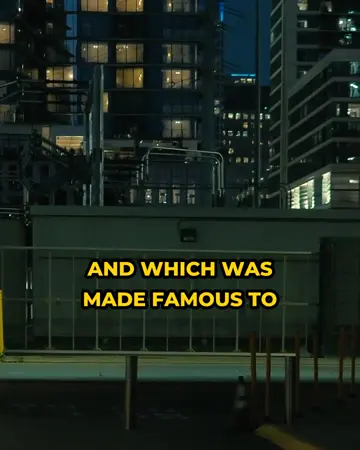
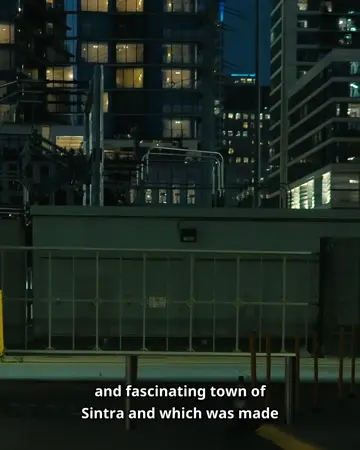
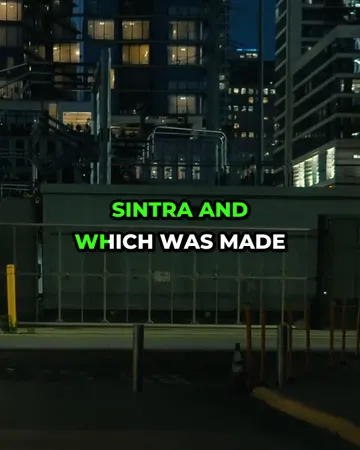
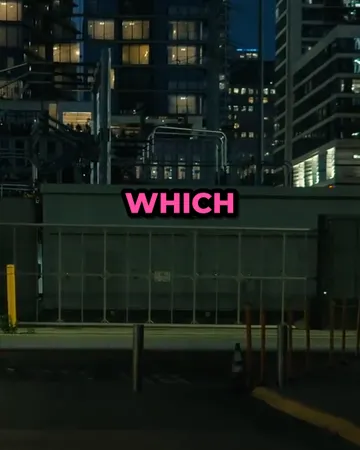
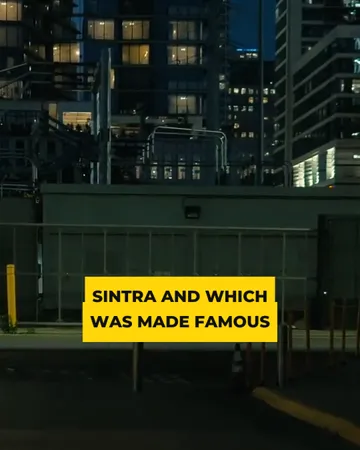
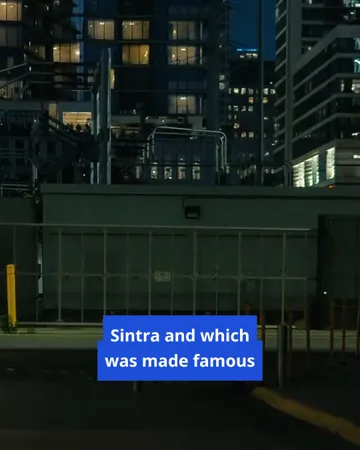
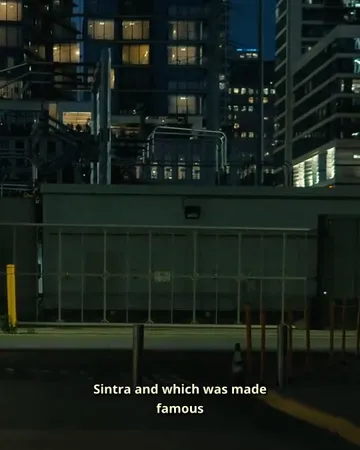
Styles for burned-in subtitles
Pick a look, then change the size, position and line count. The preview is drawn by the same renderer that makes your export.
Burn subtitles FAQ
How do I burn subtitles into a video?+
Upload the video, check the generated subtitles, pick a style, and choose Export → Video with captions. The MP4 that downloads has the subtitles burned into the picture.
Does burning in subtitles reduce video quality?+
Burning in subtitles re-encodes the video once at high quality (H.264), which is hard to see at the original resolution. Free exports are scaled to 720p.
Is there a watermark on videos with burned-in subtitles?+
Free exports carry a small SubtitlePop.com mark in the top corner. Starter and Pro export videos with burned-in subtitles without the mark.
How large or long can a video be for burning in subtitles?+
Videos up to 4 GB can have subtitles burned in. Length follows the plan: 3 minutes per video on the free plan, 30 minutes on Starter and 60 minutes on Pro.
Do I need an account to burn subtitles into a video?+
Video export needs a free account, which also includes 5 minutes of transcription a month. Subtitle files (SRT, VTT, TXT) are downloaded from the same editor.
Can hardcoded subtitles be turned off by viewers?+
Hardcoded subtitles are part of the picture and are always visible. For subtitles viewers can switch on and off, export an SRT file and upload it with the video instead.
What format is a video with burned-in subtitles exported in?+
A video with burned-in subtitles is exported as MP4 with H.264 video and AAC audio, which plays on phones, computers and every social platform.
How long is the exported video kept?+
The exported MP4 stays available in your account for 7 days and is then deleted. The original upload is deleted as soon as the export finishes.
Related subtitle tools
Caption generator
Video caption generator with AI auto captions and word-by-word styles for Reels, TikTok and Shorts. Edit every caption, then export MP4 or SRT.
Bilingual subtitles
Make bilingual subtitles online: transcribe a video, translate the captions, and show both languages together. Export an MP4 or a two-line SRT or VTT file.
TikTok captions
Add TikTok captions automatically: word-by-word caption styles sized for 9:16, kept clear of TikTok’s buttons. Edit every word, then export the MP4. Free.
Caption styles
Twelve caption styles for TikTok, Reels and Shorts: word highlight, word pop, clean outline, boxes, neon, cinema and more. Preview each on your own video.