TikTok captions: add captions to TikTok videos
Add TikTok captions that people actually read: big, word-by-word captions for 9:16 video, placed above the area TikTok covers with its own text and buttons.
- Sized for 1080×1920
- Word pop and highlight styles
- Edit every word
Real exports. Tap a style.
What this TikTok captions tool does
SubtitlePop generates TikTok captions from the speech in your video and burns them into the picture, so they show for every viewer — with or without sound, in the app or when the video is shared elsewhere. Each word is timed, which powers the Word pop and Highlight styles common on TikTok.
Upload the finished video, correct any word, pick a style and export an MP4 ready to post. Captions for TikTok videos up to 3 minutes are covered by the free plan’s 5 minutes a month.
How to add captions to a TikTok video
Upload the TikTok before posting
Use the edited video from your phone or editor — MP4 or MOV.
Choose Word pop or Highlight
Both use word timing; Word pop shows one word at a time for fast-talking hooks.
Export and post
Choose Export → Video with captions and post the MP4 to TikTok. The captions are part of the picture, so every viewer sees them.
TikTok’s auto captions vs. captions burned into the video
TikTok can generate captions that viewers switch on themselves. Captions you add to the video are always visible, keep your style, and show up in reposts and downloads. Many creators use both: auto captions for accessibility in the app, styled captions as part of the edit.
Keep TikTok captions in the safe area
- TikTok overlays your username, caption and sound at the bottom, and the like/comment/share buttons on the right.
- Place captions in the middle or just below it — the TikTok styles here start at 30–35% of the height from the bottom.
- Two to four words per line keeps them readable at a glance.
Caption styles that work on TikTok
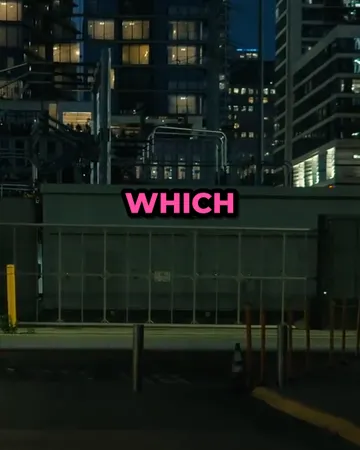
Word pop
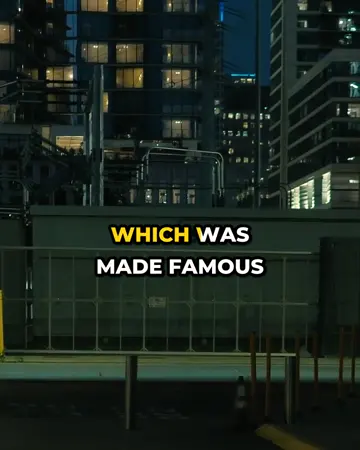
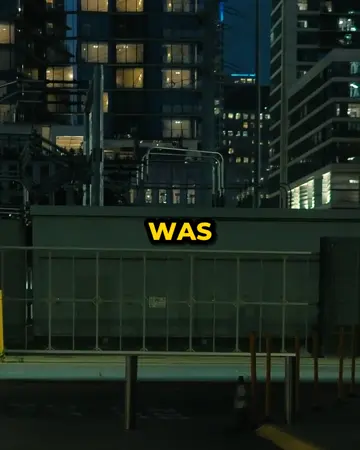
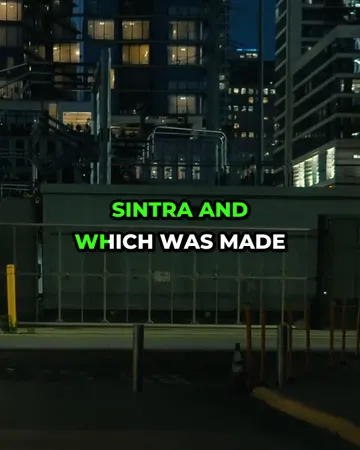
One word at a time. Suits hooks, punchlines and fast talking — the viewer never reads ahead of you.
Highlight
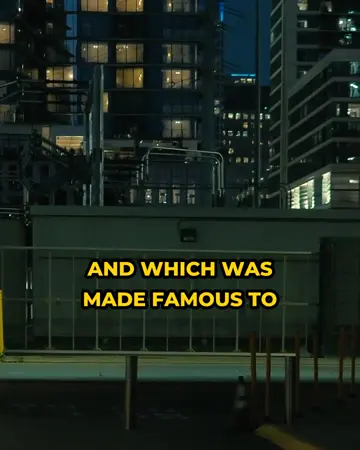
Three or four words on screen with the spoken one in yellow. Easier to follow for longer sentences.
Bold yellow
Loud, all-caps captions for energetic clips where the text is part of the look.
TikTok captions checklist before you post
- Finish the edit first: any cut or speed change after captioning moves the words out of sync.
- Choose the language yourself for very short clips or clips that mix languages.
- Read the first caption out loud. If it doesn’t make sense alone, rewrite the hook.
- Check names, slang and numbers — recognition is weakest there.
- Play it with the sound off. If you can follow the video, the captions are doing their job.
- Keep a copy of the SRT: the same captions work for Reels, Shorts and YouTube.
Languages and file types for TikTok captions
| Supported | |
|---|---|
| Spoken languages | English, Spanish, Portuguese, French, German, Italian, Dutch, Polish, Turkish, Russian, Ukrainian, Arabic, Hindi, Indonesian, Vietnamese, Thai, Chinese, Japanese, Korean and more — or “Detect language” |
| Video | MP4, MOV, M4V, WebM, MKV |
| Audio | MP3, WAV, M4A, AAC, OGG |
| Subtitle exports | SRT, WebVTT, styled ASS, plain text with or without timestamps |
| Video export | MP4 with captions burned in — 720p on the free plan, up to 1080p on Starter and 4K on Pro |
Free plan and pricing for TikTok captions
Starter is $7.99 a month for 60 minutes and exports without a watermark. A $5.99 pack adds 40 minutes that never expire.
See each caption style on real footage
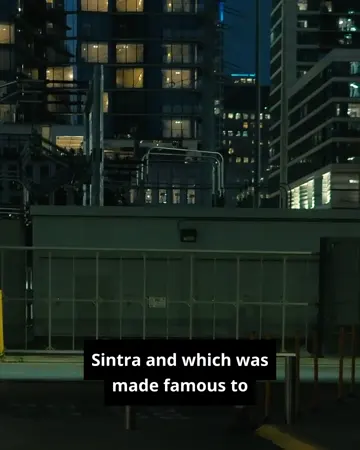
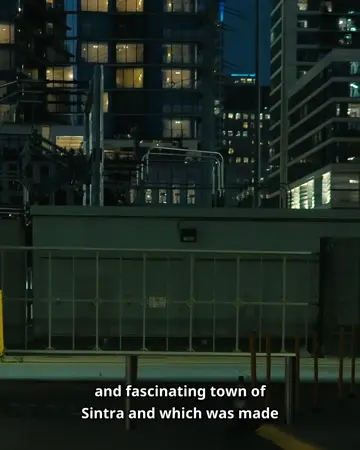
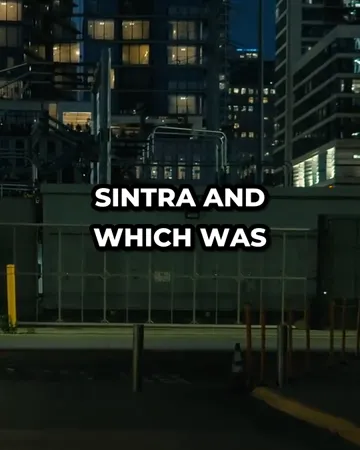
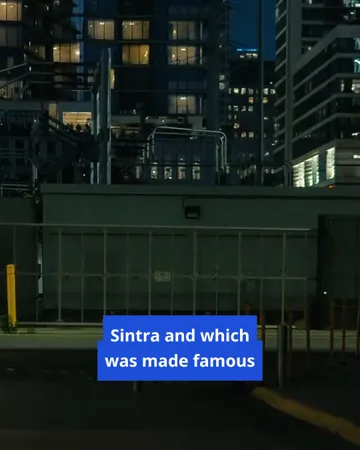
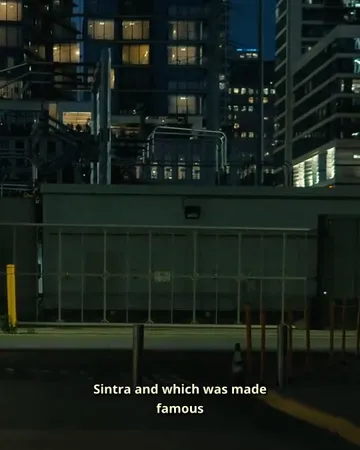
Pick a look, then change the size, position and line count. The preview is drawn by the same renderer that makes your export.


TikTok captions FAQ
How do I add captions to a TikTok video?+
Upload the finished TikTok video to SubtitlePop, choose the Word pop or Highlight style, correct any words, and export the MP4. Post that file to TikTok and the captions are part of the video.
Does TikTok add captions automatically?+
TikTok can generate auto captions that viewers switch on in the app. Captions burned into the video are always visible and keep your style, including when the video is downloaded or reposted.
Are TikTok captions free to make with SubtitlePop?+
A free SubtitlePop account includes 5 minutes of transcription every month, which covers TikTok captions for videos up to 3 minutes each. Free exports are 720p with a small mark; paid plans export 1080p without it.
What size should a TikTok video with captions be?+
A TikTok video should be 9:16 vertical at 1080×1920 pixels. Caption size is set as a fraction of the frame height, so captions look the same on 720p and 1080p uploads.
Where should captions sit on a TikTok video?+
TikTok captions read best around the middle of the frame, because TikTok overlays the username, description and sound at the bottom and the like, comment and share buttons on the right.
Can I add captions to a TikTok that is already posted?+
A posted TikTok’s picture cannot be changed, so caption the original file and post it again, or switch on TikTok’s own auto captions for the existing post.
Which languages work for TikTok captions?+
TikTok captions can be generated for speech in English, Spanish, Portuguese, French, German, Arabic, Hindi, Indonesian, Japanese, Korean and more.
Related subtitle tools
Instagram Reels captions
Add Instagram Reels captions automatically: word-timed subtitles sized for vertical video and kept above the Reels interface. Edit any word, then export MP4.
YouTube Shorts captions
Add YouTube Shorts captions two ways: word-timed captions burned into the vertical video, or an SRT file for YouTube Studio. Edit every word. Free to start.
Bilingual subtitles
Make bilingual subtitles online: transcribe a video, translate the captions, and show both languages together. Export an MP4 or a two-line SRT or VTT file.
Caption styles
Twelve caption styles for TikTok, Reels and Shorts: word highlight, word pop, clean outline, boxes, neon, cinema and more. Preview each on your own video.