Caption generator for video
An AI caption generator that adds auto captions to your videos: big, short lines with the spoken word lighting up as it’s said — made for people watching on mute.
- Word-by-word highlight
- Twelve caption styles
- Edit before you export
Real exports. Tap a style.
What the video caption generator does
This caption generator transcribes the speech in a video and turns it into on-screen captions timed to every word. Pick a caption style, adjust size and position, fix any word, and export an MP4 with the captions burned in — or download the captions as an SRT file.
It is a caption maker for short-form creators and social media teams: Reels, TikTok, Shorts, ads and talking-head clips. Auto captions are free for 5 minutes of video a month with a free account; free video exports are 720p with a small mark, and paid plans export up to 4K without it.
How to add captions to a video
Upload your clip
Vertical, square or landscape — the caption size and line length follow the frame.
Choose a caption style
Highlight lights up each word, Word pop shows one word at a time, Clean and Box are for calmer videos.
Tweak and export
Change size, position and the number of lines, fix any word, then export the MP4 with captions burned in — or download the SRT.
Why add captions to social video
Feeds autoplay without sound, so captions are how people know what a video is about before they tap. Word-by-word captions also make fast talking-head videos easier to follow. Keep lines short — two to four words on a vertical video — and keep them out of the strip at the bottom where the app shows the caption, username and buttons.
Auto captions built from word-level timing
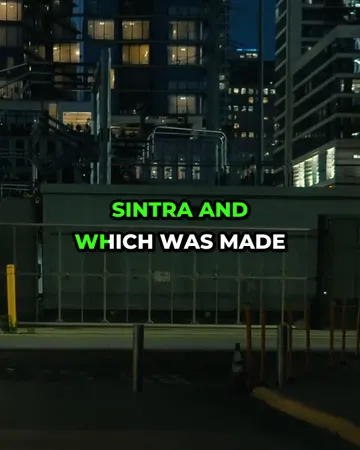
Highlight
All words on screen; the one being spoken turns yellow. Uses the exact start and end time of each word.
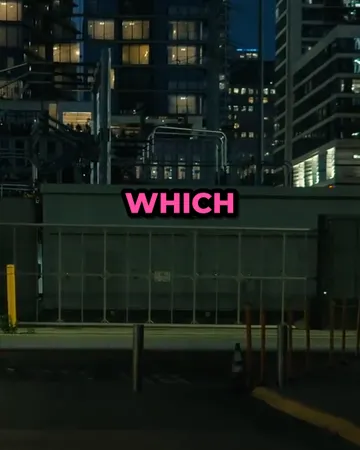
Word pop
One word at a time, scaled in as it’s spoken — the high-energy look for hooks and fast cuts.
Clean, Box, Minimal
Classic captions for interviews, tutorials and podcasts, where the words should not compete with the speaker.
Writing captions people actually read
- Two to four words at a time on vertical video. Long lines shrink the text and lose the viewer.
- Put them above the bottom third. Apps cover the bottom of the frame with the username, description and buttons.
- Highlight the spoken word when the pace is fast — it tells the eye where to look.
- Keep punctuation light. All-caps styles read well without full stops; sentence-case styles keep them.
- Check the first three seconds twice. A typo in the hook costs more than one anywhere else.
Captions, subtitles and transcripts: which the caption generator exports
| What it is | Get it here | |
|---|---|---|
| Open captions | Text that is part of the picture; always visible | Export → Video with captions |
| Closed captions / subtitles | A separate file the viewer can switch on | Export SRT or VTT |
| Transcript | The words as plain text | Export TXT, with or without timestamps |
Languages and file types the caption generator supports
| Supported | |
|---|---|
| Spoken languages | English, Spanish, Portuguese, French, German, Italian, Dutch, Polish, Turkish, Russian, Ukrainian, Arabic, Hindi, Indonesian, Vietnamese, Thai, Chinese, Japanese, Korean and more — or “Detect language” |
| Video | MP4, MOV, M4V, WebM, MKV |
| Audio | MP3, WAV, M4A, AAC, OGG |
| Subtitle exports | SRT, WebVTT, styled ASS, plain text with or without timestamps |
| Video export | MP4 with captions burned in — 720p on the free plan, up to 1080p on Starter and 4K on Pro |
Free caption generator plan and pricing
Starter is $7.99 a month for 60 minutes and exports without a watermark. A $5.99 pack adds 40 minutes that never expire.
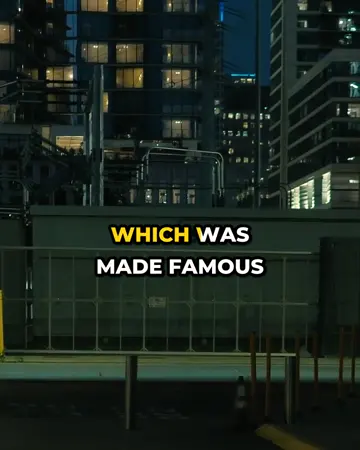
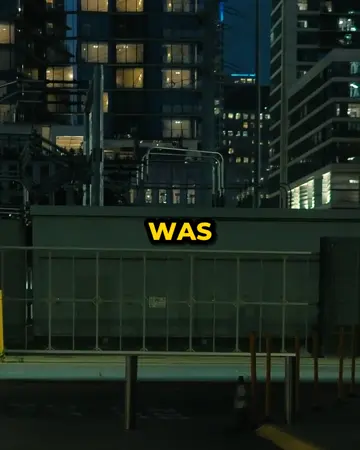
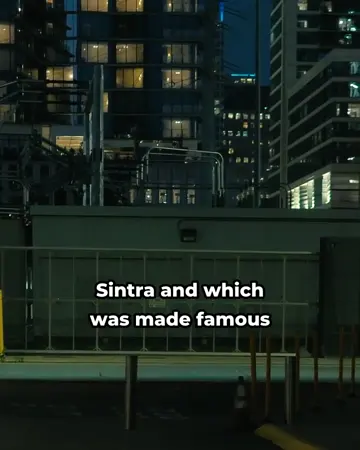
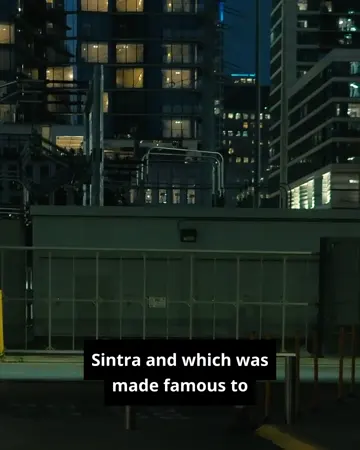
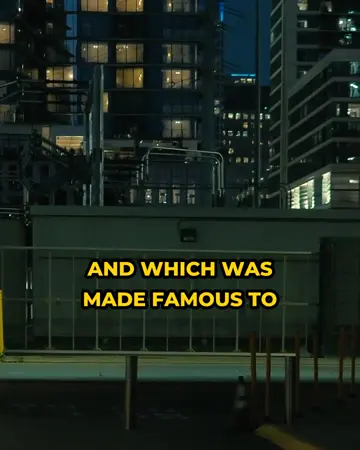
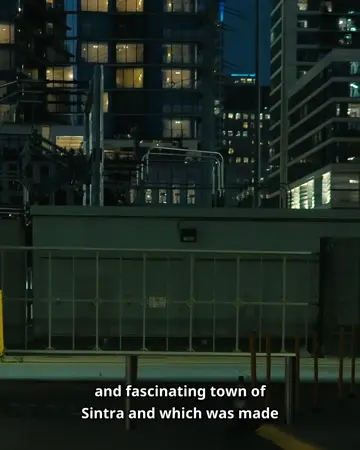
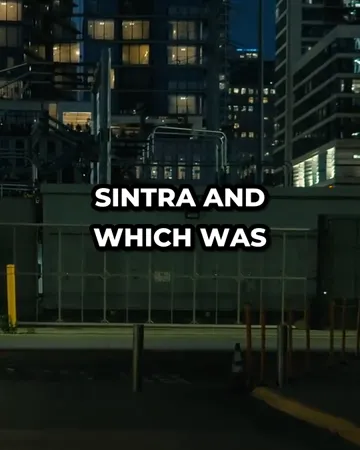
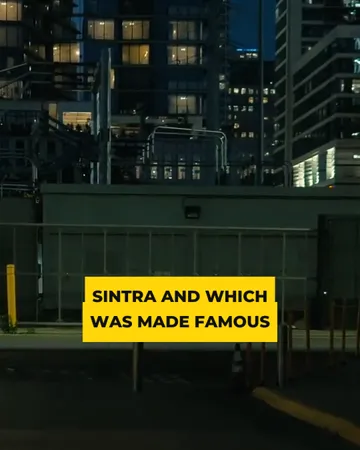
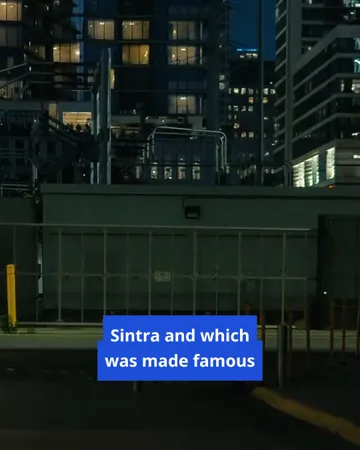
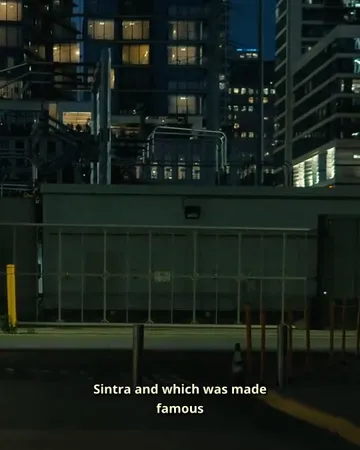
Caption styles in the caption generator
Pick a look, then change the size, position and line count. The preview is drawn by the same renderer that makes your export.
Caption generator FAQ
Is the caption generator free?+
A free SubtitlePop account includes 5 minutes of transcription every month of auto captions. Free video exports are 720p with a small SubtitlePop.com mark; Starter ($7.99 a month) and Pro export up to 1080p and 4K without the mark.
How do I add captions to a video?+
Upload the video to the caption generator, choose a caption style, correct any words in the editor, and choose Export → Video with captions. The MP4 you download has the captions built into the picture.
Can the AI caption generator make word-by-word captions?+
The AI caption generator times every word, which powers two word-by-word styles: Highlight keeps a phrase on screen and colours the spoken word, and Word pop shows one word at a time.
Can I change the caption font, size and colours?+
Caption size, position, lines per caption, all-caps, text colour and highlight colour can all be changed, starting from six caption styles. The preview shows the result on your own video.
Do exported captions look the same as the preview?+
Exported captions match the preview because both are drawn by the same caption renderer with the same font files. The styled ASS export keeps the look for players that read ASS; SRT and VTT carry the words and timings only.
Which languages do the auto captions support?+
Auto captions work for speech in English, Spanish, Portuguese, French, German, Italian, Arabic, Hindi, Indonesian, Japanese, Korean, Chinese and more. Choose “Detect language” or select the language yourself.
Can I add captions to a video that is already edited?+
Captions should be added to the finished edit: upload the final video so the timing matches. Any trim made after captioning would shift the captions out of sync.
Related subtitle tools
TikTok captions
Add TikTok captions automatically: word-by-word caption styles sized for 9:16, kept clear of TikTok’s buttons. Edit every word, then export the MP4. Free.
Instagram Reels captions
Add Instagram Reels captions automatically: word-timed subtitles sized for vertical video and kept above the Reels interface. Edit any word, then export MP4.
Bilingual subtitles
Make bilingual subtitles online: transcribe a video, translate the captions, and show both languages together. Export an MP4 or a two-line SRT or VTT file.
Caption styles
Twelve caption styles for TikTok, Reels and Shorts: word highlight, word pop, clean outline, boxes, neon, cinema and more. Preview each on your own video.