Add subtitles to video
Add subtitles to video from a file you already have: choose the SRT, VTT, ASS or SBV file and the video, pick a style, and export an MP4 with the subtitles in the picture.
- SRT, VTT, ASS and SBV files
- Uses none of your minutes
- Preview is the export
Real exports. Tap a style.
What adding subtitles to a video does here
To add subtitles to video with SubtitlePop, you bring two files: the subtitle file and the video. The captions appear over the video in the editor with their original timing, in a style you choose, and the exported MP4 shows them exactly as the preview does.
Opening your own subtitle file uses none of your transcription minutes. Subtitle files download without an account; exporting the video needs a free account.
How to add subtitles to a video from a file
Choose your subtitle file
Select “Choose your subtitle file” and pick the SRT, VTT, ASS or SBV file. The captions are read in your browser with the start and end time of every line.
Choose the video
Pick the video the subtitles belong to. The editor opens with your captions over the picture, already wrapped to fit the frame.
Style and export
Pick one of 12 styles, set size and position, fix any line, then choose Export → Video with captions for an MP4 with the subtitles in the picture.
What happens to your subtitle file
- Timing stays as written. Every caption keeps the start and end time from your file. To move all of them at once, shift the file first with the subtitle time shift tool.
- Lines are fitted to the frame. Line breaks are measured again with the caption font at your video’s resolution, so a subtitle written for a wide video also fits a vertical one.
- Word styles still work. In Highlight and Word pop, each caption’s time is spread across its words, so the words light up in step while the line is on screen.
- Every line stays editable. Change the text or the times, split and merge captions, and use find and replace before exporting.
Add subtitles to a video: burned in or as a file
| You need | Export |
|---|---|
| Subtitles that are always visible on TikTok, Reels, Shorts or in an ad | Video with captions: an MP4 with the subtitles drawn into the picture |
| The same subtitles in another format | Subtitle file: SRT, VTT, styled ASS or plain text |
| A second language under the first | Bilingual subtitles, after translating in the editor |
| The subtitles in another language only | The subtitle translator, then an MP4 or a subtitle file |
No subtitle file yet?
Upload the video on its own and SubtitlePop writes the subtitles from the speech, with a time for every word. Start with the subtitle generator, extract subtitles from a video that has them burned in, or see how the result is drawn into the picture on burn subtitles into video.
Subtitle and video file types
| Supported | |
|---|---|
| Spoken languages | English, Spanish, Portuguese, French, German, Italian, Dutch, Polish, Turkish, Russian, Ukrainian, Arabic, Hindi, Indonesian, Vietnamese, Thai, Chinese, Japanese, Korean and more — or “Detect language” |
| Video | MP4, MOV, M4V, WebM, MKV |
| Audio | MP3, WAV, M4A, AAC, OGG |
| Subtitle exports | SRT, WebVTT, styled ASS, plain text with or without timestamps |
| Video export | MP4 with captions burned in — 720p on the free plan, up to 1080p on Starter and 4K on Pro |
Adding subtitles on the free plan and paid plans
Starter is $7.99 a month for 60 minutes and exports without a watermark. A $5.99 pack adds 40 minutes that never expire.
Styles for the subtitles you add
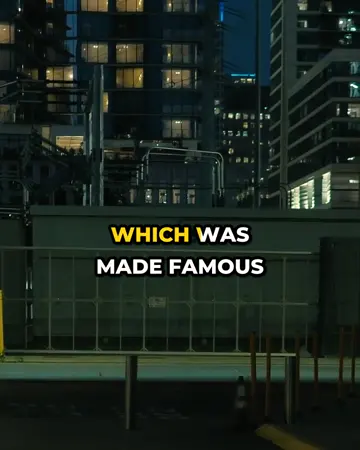
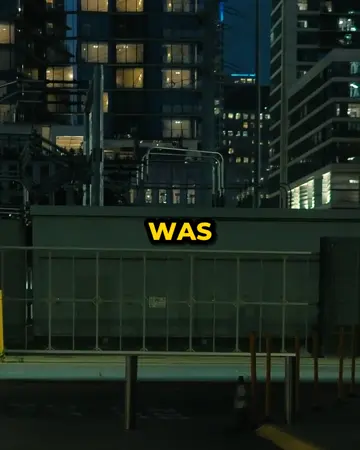
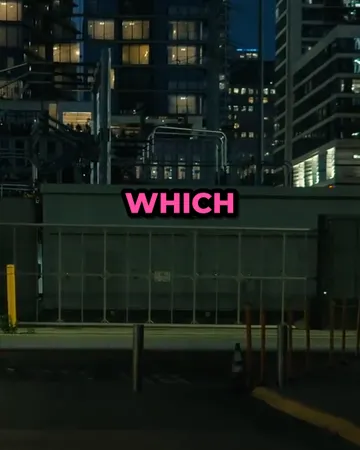
Pick a look, then change the size, position and line count. The preview is drawn by the same renderer that makes your export.









Add subtitles to video FAQ
How do I add an SRT file to a video?+
Select “Choose your subtitle file”, pick the SRT file, then choose the video. The editor opens with the subtitles over the video; choose Export → Video with captions to download an MP4 with the SRT subtitles in the picture.
Which subtitle files can be added to a video?+
SRT, WebVTT (VTT), ASS/SSA and SBV subtitle files can be added to a video. The format is recognised from the file itself.
Does adding my own subtitle file use minutes?+
Opening your own subtitle file uses none of your minutes, because nothing is transcribed. Minutes are used only when captions are generated from speech or translated.
Can I change the style of the subtitles I add?+
Subtitles from a file take any of the 12 caption styles, with controls for size, position, lines per caption, capitals and colours. Styling in an ASS file is replaced by the style chosen in the editor.
Can I fix the timing after adding subtitles to a video?+
Each caption shows its start and end time in the editor, and both can be typed over. Captions can also be split and merged.
Is the subtitle file uploaded?+
The subtitle file is read in your browser. The video is uploaded only when you export a video with captions, and that upload is deleted when the export finishes.
Related subtitle tools
Burn subtitles into video
Burn subtitles into video online: generate captions, pick a style, and download an MP4 with hardcoded subtitles. No editor needed. Free at 720p.
Subtitle translator
Subtitle translator for videos: transcribe the speech, translate the subtitles into 19 languages with timing unchanged, edit any line, export SRT or MP4.
Subtitle checker
Free subtitle checker: find overlaps, wrong order, empty or too-brief captions, long lines and fast reading speed in a subtitle file, then fix timing.
Caption styles
Twelve caption styles for TikTok, Reels and Shorts: word highlight, word pop, clean outline, boxes, neon, cinema and more. Preview each on your own video.