Subtitle editor
A subtitle editor for videos and subtitle files: correct the words, fix the timing, teach it your names and terms once, and export exactly what the preview shows.
Written this way in every video you caption. Kept on your account when you are signed in.
- Video or subtitle file
- Names spelled your way
- Preview is the export
Real exports. Tap a style.
What the subtitle editor is for
The subtitle editor is where generated or imported subtitles are made right. It shows every subtitle beside the video, plays the moment you click, and lets you correct text and timing without leaving the page. Names, brands and terms are kept in a list on your account, so the same word is not corrected twice.
How to edit subtitles
Open the video or the subtitle file
Upload a video and the subtitles are written from the speech. Already have an SRT, VTT, ASS or SBV file? Select “Already have a subtitle file?” and open it with the video, or on its own.
Fix the words and the timing
Click a subtitle to jump to that moment. Type to correct it, change its start or end time, split it, merge it with the next, or replace a word across the whole video.
Export
Download the edited subtitles as SRT, VTT, ASS or text, or export an MP4 with the subtitles in the picture, looking as they do in the preview.
What the subtitle editor fixes
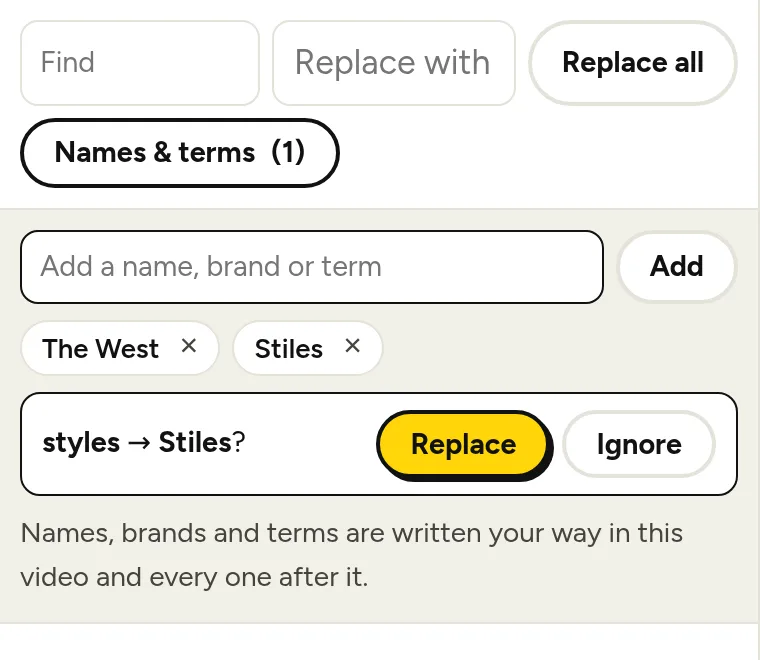
Names and terms, taught once
Recognition slips most on names, brands and jargon. Add yours under Names & terms: the list is handed to the speech recogniser, spellings that differ only in capitals or spacing are corrected for you, and near misses are offered with one click. Accept a correction and the editor remembers it for every later video.
Edit the words, keep the timing
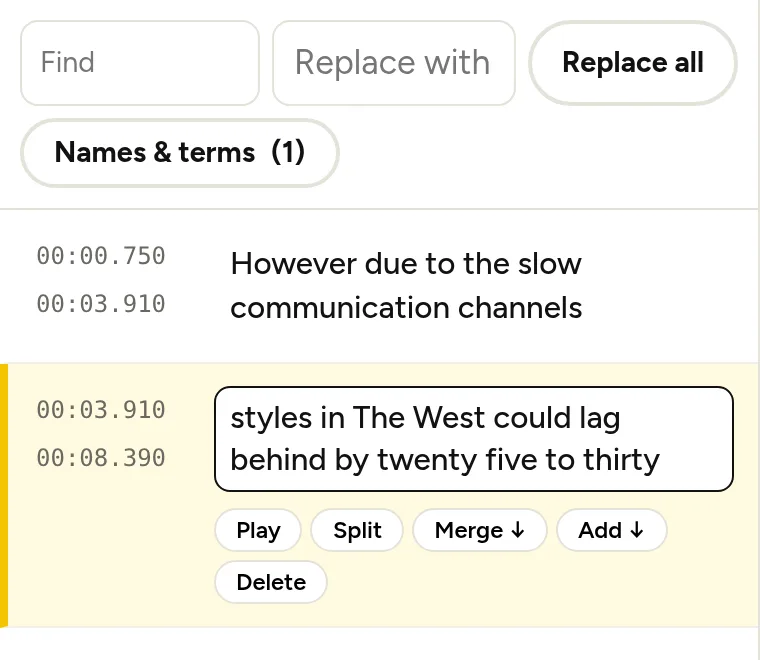
Change a word and the subtitle stays in step: its time is shared out again across the new words, so word-by-word styles keep following the speaker. Start and end times can be typed over, and a subtitle can be split or merged with the next.
One correction, the whole video
Find and replace changes every occurrence at once. After a replacement the editor asks whether to remember it, so a name fixed today is written correctly in the next video without asking.
The preview is the export
The subtitles over the video in the editor are drawn by the same renderer, with the same fonts, that writes the exported MP4. Line breaks, colours, position and the highlighted word match what you approved.
The subtitle editor at a glance
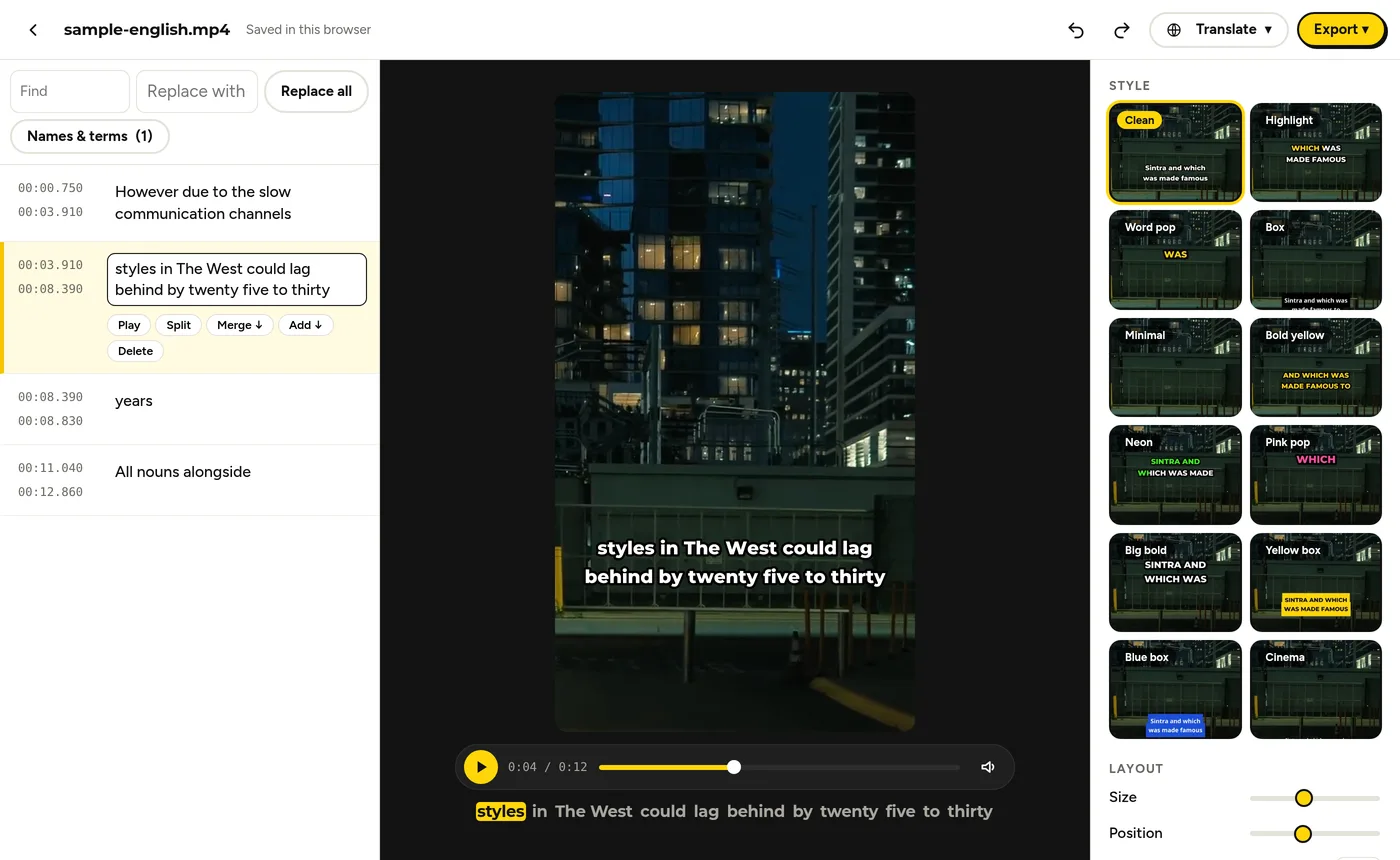
| In the editor | What it does |
|---|---|
| Subtitle list | Every subtitle with its start and end time; click one to jump to it |
| Find and replace | Filters the list as you type; “Replace all” changes every occurrence |
| Names & terms | Your list of names, brands and terms, with corrections for this video |
| Play, Split, Merge, Add, Delete | On each subtitle: hear it, cut it in two, join it to the next, insert one after it, or remove it |
| Undo and redo | Every change can be taken back, 50 steps deep |
| Translate | The subtitles in 19 languages, alone or under the original |
| Style, size, position, lines | Twelve styles and the layout controls, shown live on the video |
Caption editor for files you already have
The caption editor opens an existing SRT, VTT, ASS or SBV file as well. With its video, the captions appear over the picture and can be restyled and burned in — see add subtitles to video. Without the video, the file opens on its own for editing the text and the times, and saves back as a subtitle file — see the SRT editor. Opening your own file uses none of your minutes.
Languages and file types the subtitle editor opens
| Supported | |
|---|---|
| Spoken languages | English, Spanish, Portuguese, French, German, Italian, Dutch, Polish, Turkish, Russian, Ukrainian, Arabic, Hindi, Indonesian, Vietnamese, Thai, Chinese, Japanese, Korean and more — or “Detect language” |
| Video | MP4, MOV, M4V, WebM, MKV |
| Audio | MP3, WAV, M4A, AAC, OGG |
| Subtitle exports | SRT, WebVTT, styled ASS, plain text with or without timestamps |
| Video export | MP4 with captions burned in — 720p on the free plan, up to 1080p on Starter and 4K on Pro |
The subtitle editor on the free plan and paid plans
Starter is $7.99 a month for 60 minutes and exports without a watermark. A $5.99 pack adds 40 minutes that never expire.
Sync subtitles and fix timing
Subtitles go out of sync for two reasons, and the subtitle editor has a fix for each.
- One subtitle is off. Click it, listen, and type a new start or end time.
- Everything is off by the same amount — the video gained an intro, or lost its first seconds. Shift the whole file with the subtitle time shift tool, then open it in the editor.
Subtitles generated here from the video itself start in sync: every word is timed from the soundtrack of the file you uploaded.
File formats the subtitle editor opens and saves
| Format | Opens | Saves | Typical use |
|---|---|---|---|
| SRT (.srt) | Yes | Yes | YouTube, LinkedIn, Facebook, video editors |
| WebVTT (.vtt) | Yes | Yes | HTML5 video, web players, meeting recordings |
| ASS / SSA (.ass) | Yes | Yes, with the chosen style | Aegisub, VLC, mpv, ffmpeg |
| SBV (.sbv) | Yes | Downloads from YouTube Studio | |
| Plain text (.txt) | Yes, with or without timestamps | Transcripts and show notes | |
| MP4 with subtitles | Yes | TikTok, Reels, Shorts, ads |
Editing subtitles for different kinds of video
Shorts, Reels and TikTok
Short lines, large type and word-by-word highlight. Set lines per caption to 1 or 2 and check each line against the speaker.
YouTube videos and tutorials
Correct names and terms once, then export an SRT to upload under Subtitles — and a transcript for the description.
Podcasts and interviews
Long recordings with recurring names: the Names & terms list and find and replace do most of the work.
Courses and training
Consistent terminology across a series, and a subtitle file per language for learners.
Client work
Hand over an SRT with the cut, or a captioned MP4 in the client’s colours.
Style and translate from the same editor
Editing is rarely the last step. The same screen has twelve subtitle styles with controls for size, position, lines per caption, capitals and colours — see caption styles — and a Translate button that writes the subtitles in 19 languages with the timing unchanged, alone or as bilingual subtitles.
The editor runs in the browser: there is nothing to install, and the video file stays on your device until you export a video with captions.
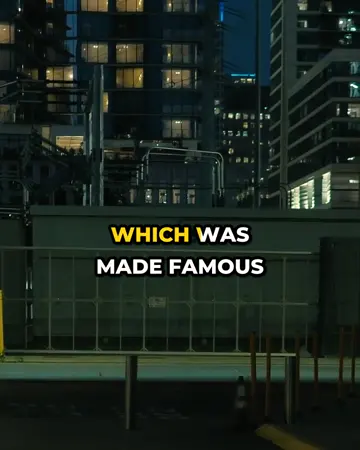
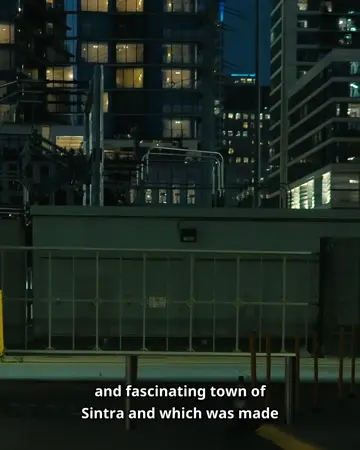
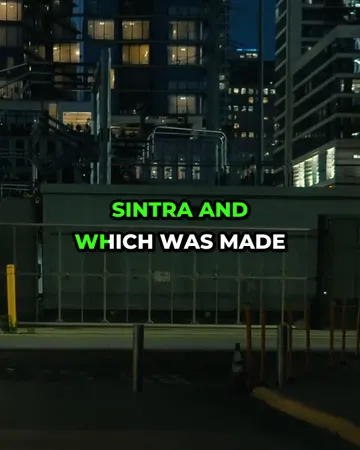
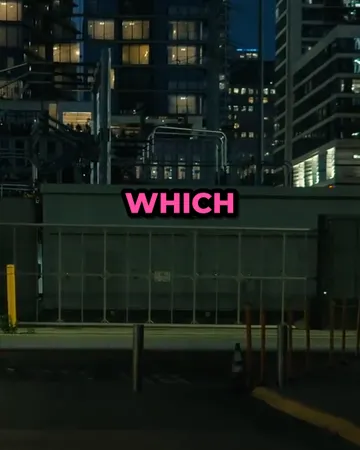
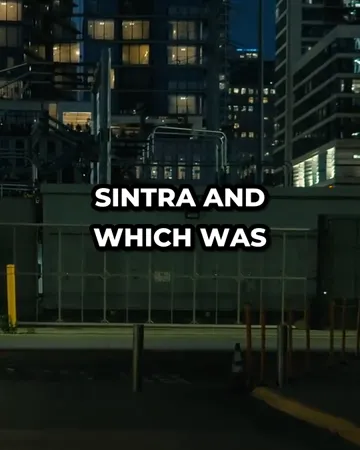
Styles in the subtitle editor
Pick a look, then change the size, position and line count. The preview is drawn by the same renderer that makes your export.

Subtitle editor FAQ
How do I edit subtitles in a video?+
Upload the video to the subtitle editor, click the subtitle to change, and type the correction. Start and end times are editable too, and the edited subtitles export as SRT, VTT or burned into an MP4.
How do I fix a name that is misspelled in every subtitle?+
Type the misspelling into Find, the right spelling into Replace with, and select Replace all. Choose “Remember” afterwards and the subtitle editor writes the name correctly in later videos as well.
Does editing a subtitle change the timing?+
Editing the text of a subtitle keeps its start and end time; the time is shared out again across the new words so word-by-word styles stay in step.
Can the subtitle editor open an SRT file?+
The subtitle editor opens SRT, VTT, ASS and SBV files, with their video or on their own, and opening a file uses none of your minutes.
Will the exported video match the subtitle editor preview?+
The exported MP4 is drawn by the same renderer and fonts as the preview in the subtitle editor, so line breaks, colours and position match.
Is the subtitle editor free?+
Editing and downloading subtitle files is free in the subtitle editor. Generating subtitles from speech uses minutes: 5 are free every month with an account.
How do I sync subtitles with a video?+
Open the subtitles with the video in the subtitle editor and type new start or end times where a line is off. When every line is off by the same amount, shift the file with the subtitle time shift tool first.
Which subtitle formats does the subtitle editor support?+
The subtitle editor opens SRT, WebVTT, ASS/SSA and SBV files and saves SRT, WebVTT, ASS and plain text, or an MP4 with the subtitles in the picture.
Can I edit auto-generated captions from YouTube?+
Download the captions from YouTube Studio as an SRT or SBV file, open the file in the subtitle editor with or without the video, correct it, and upload the edited SRT back to YouTube.
Does the subtitle editor need to be installed?+
The subtitle editor runs in the browser, with nothing to download or install.
Related subtitle tools
SRT editor
Free online SRT editor: open an SRT file with its video or on its own, fix the text and the timing, split and merge captions, and save the edited SRT file.
Add subtitles to video
Add subtitles to video online from your own SRT, VTT, ASS or SBV file: pick a style, check the preview, and export an MP4 with the subtitles burned in.
Subtitle translator
Subtitle translator for videos: transcribe the speech, translate the subtitles into 19 languages with timing unchanged, edit any line, export SRT or MP4.
Subtitle checker
Free subtitle checker: find overlaps, wrong order, empty or too-brief captions, long lines and fast reading speed in a subtitle file, then fix timing.